Sneak preview: Collapsible submenus


There's a lot of new features I want to add to Metro Map Maker, but each new feature typically adds some new button or takes up additional space in the menu, which is starting to get a bit crowded.
The menu can be collapsed, which hides some of the less commonly-used buttons and allows you to see more of the grid at once, but when expanded again, there's still a lot of buttons you could press.
The menu is separated into three colors: red, blue, and green, to give some visual cue to what each type of button does. Red buttons make some important change to the map, blue buttons are about saving or downloading, and green buttons tend not to make any changes to your map (with the exception of Move selection, which maybe should be folded into the Move Map menu).
That color coding is maybe useful, but it still doesn't solve the problem of every time I add new features, or line widths or styles, the menu gets more and more crowded.
Version 7.3 will add collapsible submenus, to help address this problem.
The first collapsible submenus you'll notice are "Other tools" and "Browse & Remix". All of the buttons from the green menu (plus the "Clear map" button) have been put into a submenu called Other tools.
Now that these Other tools are grouped together, clicking on their menu title ("Other tools") will collapse the menu, showing only a few buttons.
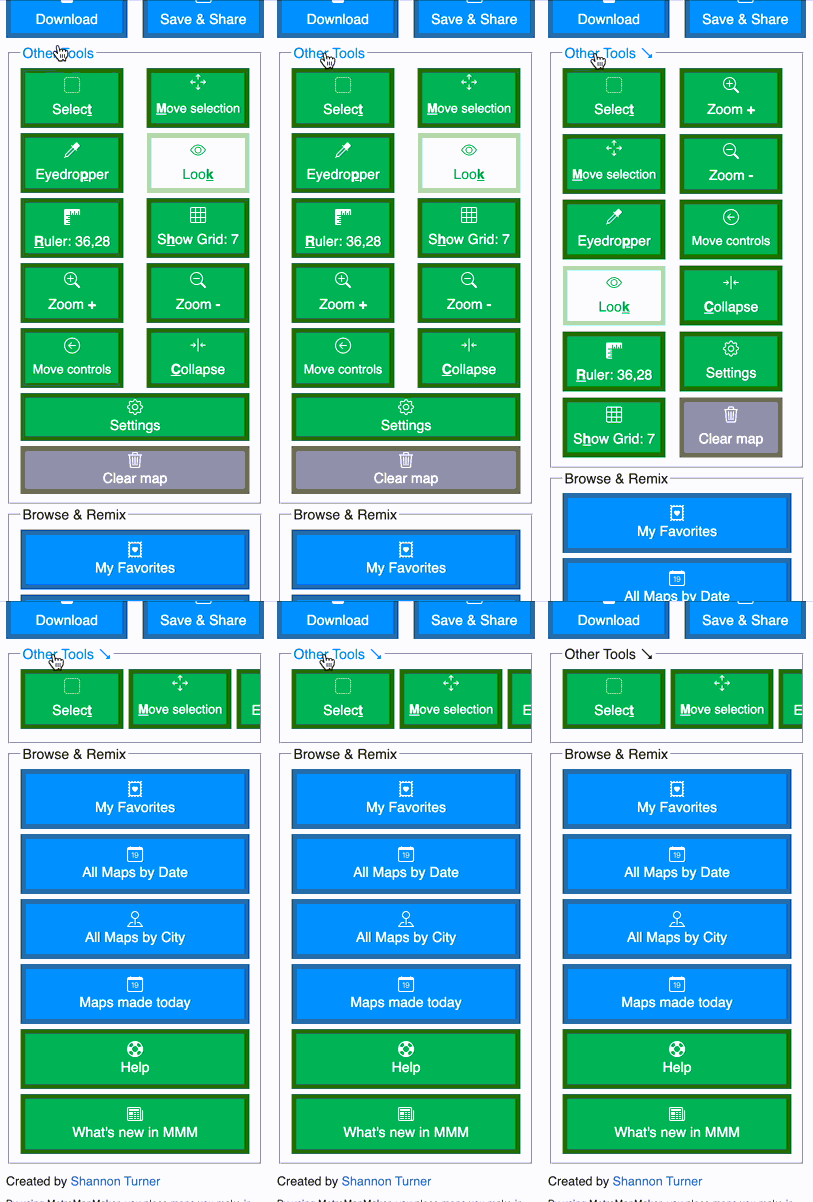
The rest of the buttons are still available via a horizontal scrollbar, and of course, the keyboard shortcuts still work. In fact, using a keyboard shortcut for your button will scroll that button into view.
Browse & Remix can be collapsed too, since you're less likely to use it while actively making a map.
Here are all the submenus that can be collapsed, and how big the size difference is (in pixels):
- Draw > Line color (keyboard shortcut 1-0, Shift 1-0, Alt 1-0). Size change depends on how many colors you have, but on the default DC map, from ~402px to ~83px)
- Draw > Line size (keyboard shortcut W; from ~226px to ~120px)
- Draw > Line style (keyboard shortcut Q; from ~486px to ~120px)
- Style > Map Line Size (from ~265px to ~100px)
- Style > Station Shape (from ~390px to ~100px)
- Other Tools (includes all buttons in the green menu and Clear Map; from ~462px to ~100px)
- Browse and Remix (from ~420px to ~36px)
Here's an example of how much smaller the Draw menu is:
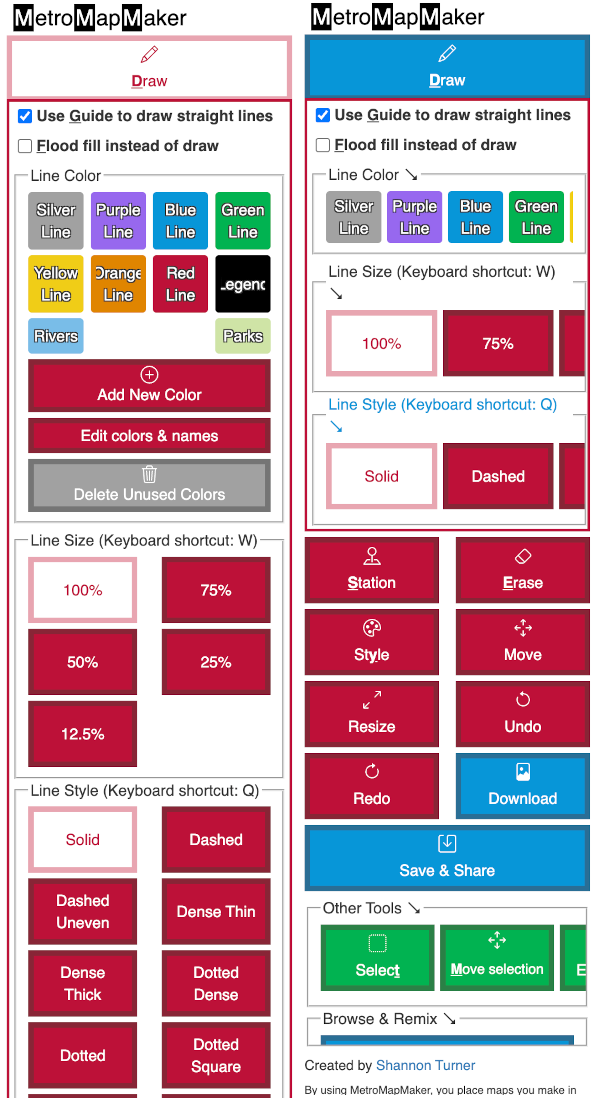
If you want to un-collapse a menu, you can click its title again to restore it to full height.
I think this will make it so much easier to use the menu and make your maps. I've got lots more new features to share in sneak previews just like this, too. Metro Map Maker v7.3 is going to be a big release, so stay tuned!