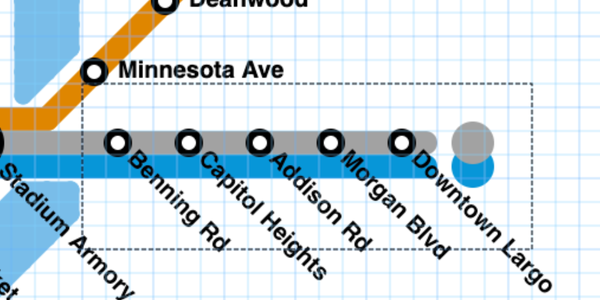
Sneak preview: Layers


One of the features that's requested most often is the ability to overlap lines. Some of you have very helpfully sent in screenshots of maps that would look a lot better if line overlapping were possible. I always appreciate feature requests and suggestions, but it's extra helpful when examples are involved!
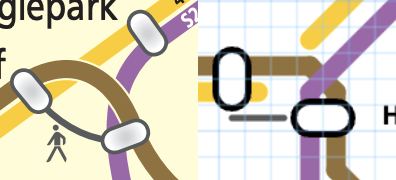
Overlapping lines might seem like a small feature that's easy to do, but there's actually a lot of little details that are important to get right!
In today's post, I'm going to demo one of those details: the Layers menu.
The Layers button is a new addition to the green menu, and clicking it will open a modal window that shows you all of the colors in your map.
By default, all of the colors are checked. If you uncheck one or more of the colors, those colors will be drawn very faintly:
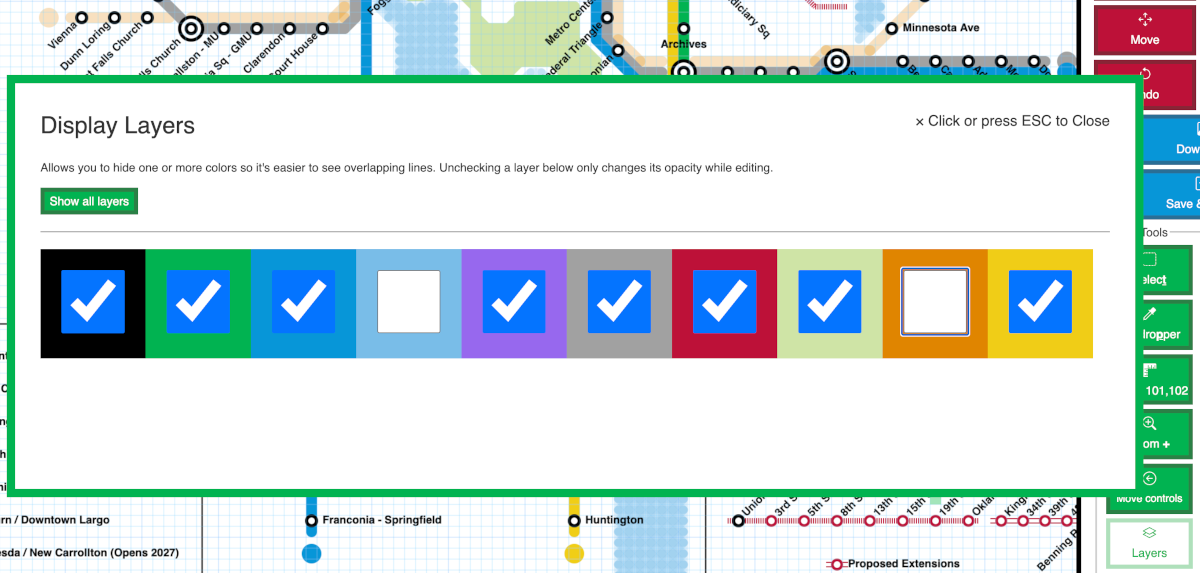
This doesn't actually change your map in any way, but it can be useful if you're trying to visualize two or more overlapping lines.
Another important thing happens when you uncheck (disable) a layer: you generally won't be able to edit any points with that color until you re-check (re-enable) that layer. This means that if you attempt to erase or draw over a layer that's disabled, that color won't be erased and generally, editing that map won't apply to that color.
Once finalized, all of this will all be explained on the Layers modal window too.
I considered making an unchecked color disappear entirely, but in my tests, this made it a little too easy to forget that a specific color was de-selected. This also made the map look odd for unselected colors because stations on those colors were still visible, they just appeared not to be on any line.
That behavior would look buggy, make it appear like stations can be placed without being on a line (which isn't allowed), and would probably make debugging harder for me, so I opted instead to make the color very faint. I think this choice strikes the right balance – you can still tell there's a line there, but you'll be able to easily see an overlapping color.
As I'm designing the overlapping lines feature, I think when a layer is unchecked, it shouldn't be affected by other tools, like the eraser. I'm still working on how layers should behave, but this seems the closest to how you might expect.
By default, all colors are checked (highly visible), of course, and again, unchecking a color does not change a map, it only changes your display while you're editing. If you uncheck several colors, you can turn them all back on by clicking the "Show all" layers button that appears in the modal window.
Also: unchecking all colors is treated as if none of the colors are unchecked, because it would be weird to show none of the colors at all.
Since the modal windows are new, I wanted to make them very easy to use. You'll see some more modal windows in future updates, and they'll all work similarly. They can be closed by pressing the X in the upper right-hand corner of their window, or by pressing Esc, or by clicking anywhere on the grid/map.
There's a lot more work needed before I'll be able to release overlapping lines, and I have a few more sneak previews on the topic planned. More soon!